Secure Business Guide may earn a commission if you buy through links on this page, at no extra cost to you.
Our recommendations are based on practical use cases, security needs, features, pricing, and suitability for small businesses.
Microsoft 365 can hold a small business’s email, files, Teams conversations, SharePoint data and administrator identities. That makes tenant security a business-continuity issue, not just an IT setting.
Microsoft’s current guidance for small and midsize businesses emphasizes MFA, protected administrator accounts, anti-phishing controls, endpoint protection, least privilege, secure sharing and recovery. This checklist turns those recommendations into a practical 2026 hardening plan.
Review Microsoft’s Microsoft 365 for business security best practices.
Microsoft 365 Security Checklist: Quick Priorities
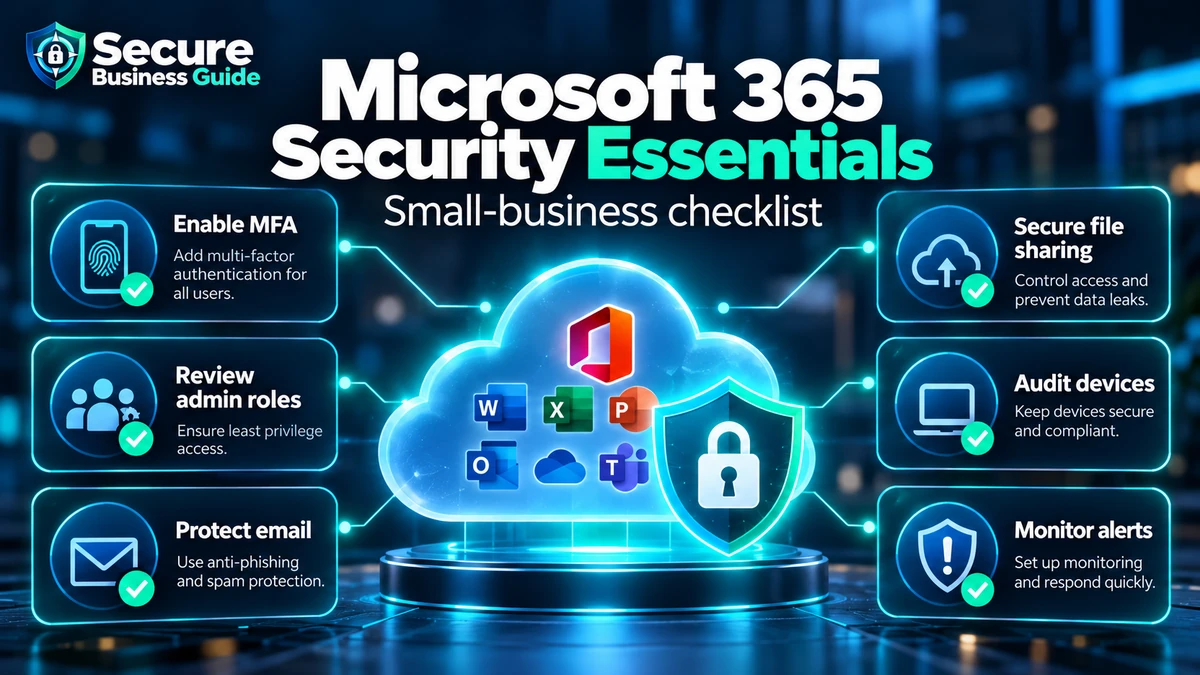
- Require MFA
- Move admins toward phishing-resistant authentication
- Reduce administrator accounts
- Use separate admin accounts
- Configure anti-phishing protection
- Review external forwarding
- Protect devices
- Control external sharing
- Monitor alerts and sign-ins
- Test recovery
1. Require MFA for Every User
Microsoft recommends MFA broadly. Security defaults are available through Microsoft Entra ID Free, while organizations with appropriate licensing can use Conditional Access for more targeted policies.
Read Microsoft’s MFA setup guidance.
2. Move Toward Phishing-Resistant Authentication
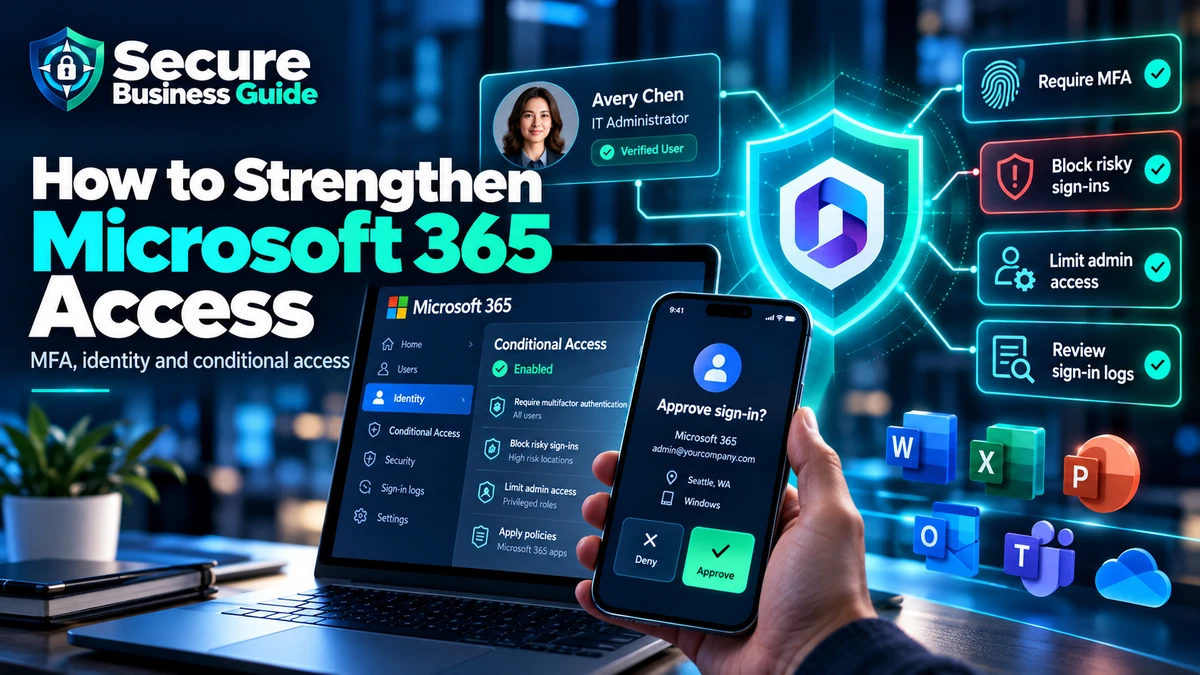
Microsoft recommends phishing-resistant MFA for privileged roles. Passkeys are increasingly important in Entra ID, and users enabled for SMS or voice authentication began being nudged toward passkey registration from September 2026.
See our passkeys vs passwords guide.
3. Reduce Administrator Accounts
Every privileged account creates additional risk. Use the least privileged role that can perform the required task instead of assigning Global Administrator broadly.
4. Separate Admin and Everyday Accounts
Microsoft recommends using normal user accounts for everyday email, browsing and collaboration, while admin accounts are reserved for administrative tasks.
5. Maintain Emergency Access
Document how the business will regain tenant access if normal administrator accounts or MFA methods fail. Microsoft documents emergency-access accounts, but these accounts must be managed carefully.
Review Microsoft’s admin-account security guidance.
6. Strengthen Anti-Phishing Protection
Review anti-phishing configuration, impersonation protection, user reporting and suspicious mail-flow behavior. Microsoft also recommends reviewing external forwarding rules because attackers may create them after compromise.
7. Use Safe Links and Safe Attachments Where Available
Microsoft Defender for Office 365 can add protections such as Safe Links and Safe Attachments. Licensing differs, so verify exactly which controls your plan includes.
Compare broader options in our best email security tools guide.
8. Consider Standard or Strict Preset Security Policies
Defender for Office 365 provides preset policies with recommended control settings that Microsoft can update as protection guidance evolves.
9. Remove Unnecessary Legacy Authentication
Older protocols may not support modern protections. Identify business systems that still depend on legacy authentication before disabling it.
10. Protect Company Devices
Keep operating systems patched and supported. Use endpoint protection, disk encryption and appropriate device management.
11. Set a BYOD Policy
Define what personally owned devices may access, whether local downloads are allowed and how access is removed when an employee leaves.
12. Review SharePoint and OneDrive External Sharing
Review guest users, anonymous links, link expiration and access to sensitive folders. Remove sharing that is no longer needed.
13. Protect Teams Collaboration
Treat unexpected Teams messages, file shares and support requests with the same caution as suspicious email. Limit external access according to business need.
14. Review Mailbox Forwarding
External forwarding can be used for persistence or data theft after mailbox compromise. Investigate unexpected rules immediately.
15. Monitor Sign-Ins and Security Alerts
Review suspicious sign-ins, authentication-method changes, administrator assignments and unexpected application consent.
16. Use Microsoft Secure Score as a Prioritization Tool
Secure Score can identify recommended improvements, but it should not be treated as proof that a tenant is secure.
17. Review Application Permissions
Remove unused applications and investigate apps requesting unusually broad access to Microsoft 365 data.
18. Protect Sensitive Data
Where licensing supports them, use appropriate encryption, sensitivity labels, retention and DLP for customer, financial, HR and confidential business data.
19. Create an Offboarding Checklist
Disable access promptly, revoke sessions, recover company devices, transfer data ownership and remove unneeded group memberships and privileges.
20. Test Recovery Before an Incident
Document what happens if an admin account is compromised, a mailbox is taken over or ransomware affects business data. Use our ransomware protection checklist as the broader resilience plan.
Common Microsoft 365 Security Mistakes
- Too many Global Administrators
- Using admin accounts for email
- Relying only on passwords
- Ignoring external forwarding
- Leaving former employees active
- Unreviewed app permissions
- Uncontrolled external sharing
- Ignoring security alerts
Frequently Asked Questions
Should every employee have admin rights?
No. Use least privilege and only assign the permissions required for the person’s job.
Should a small business use passkeys?
Where supported, passkeys can provide phishing-resistant authentication and align with Microsoft’s current identity direction.
Does Microsoft 365 remove the need for training?
No. Employees still need to recognize phishing, impersonation, QR phishing and unusual MFA prompts.
Final Takeaway
A secure Microsoft 365 environment depends on identity protection, administrator discipline, email defense, device security, controlled sharing, monitoring and tested recovery.
Explore CBOOMARANK for website SEO analysis, competitor intelligence, authority and backlink opportunities.
View CBOOMARANK plans and pricing.
Related Security Guides