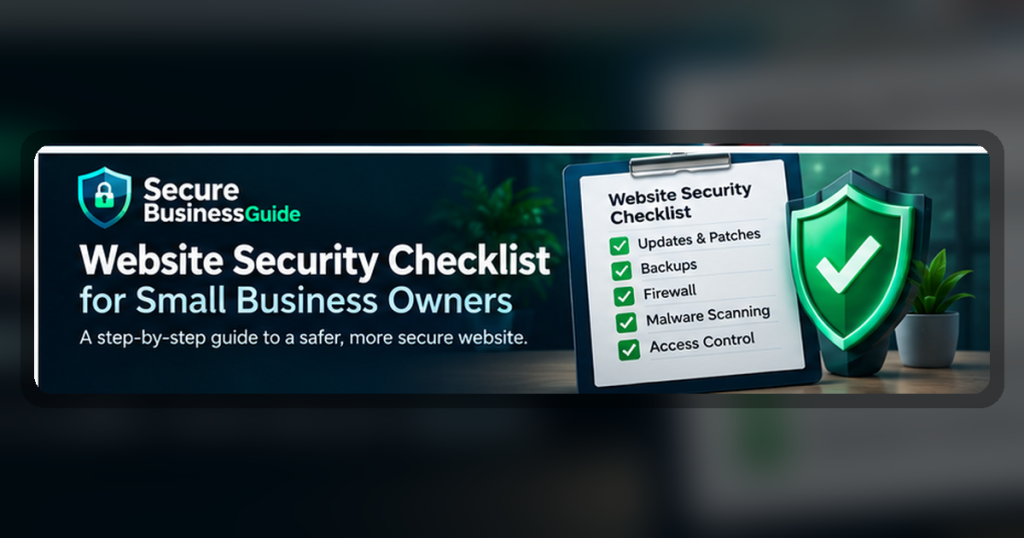
This website security checklist for small business owners helps you review the most important steps for protecting your website, accounts, files, and online reputation.
Website security does not need to be complicated. Small, consistent steps can reduce common risks such as weak passwords, outdated software, malware, missing backups, and insecure hosting.
Website Security Checklist for Small Business Owners: Quick Recommendations
Wordfence
Helpful for WordPress firewall and malware scanning
Sucuri
Helpful for malware cleanup and website monitoring
Backblaze
Helpful for cloud backup and file recovery
Key Features to Compare
- Strong passwords
- Two-factor authentication
- Regular backups
- Plugin and theme updates
- SSL certificate
- Malware scanning
How to Choose the Right Option
Start by identifying the main risk you want to reduce. Some businesses need stronger account protection, while others need safer browsing, malware cleanup, better backups, or website protection. Choose a tool that fits your team size, technical comfort, budget, and support needs.
Do not choose a product only because it is popular. Compare the features that matter for your exact workflow, then test the tool before moving all business activity into it.
Security Buying Checklist
- Does the product solve a real security problem for your business?
- Is it easy enough for your team to use consistently?
- Does it support small business workflows and multiple users?
- Does pricing remain reasonable as your team grows?
- Does it include support, documentation, and clear setup guidance?
- Can it work alongside your existing website, hosting, devices, and SaaS tools?
Related Secure Business Guide Resources
Explore our Recommended Security Tools, read How We Review Security Tools, and browse more cybersecurity guides.
Final Recommendation
Choose security tools based on business risk, ease of use, reliability, and long-term value. A practical tool your team uses consistently is better than a complicated platform that no one follows properly.
Small Business Website Security Checklist
A secure business website is not created by installing one plugin or buying one security product. Website security depends on several layers working together: hosting, software updates, administrator accounts, passwords, backups, malware protection, access controls, monitoring, employee practices, and a clear recovery plan.
For a small business, the objective is practical risk reduction. You want to make unauthorized access harder, detect problems quickly, protect customer and business information, maintain reliable backups, and recover without unnecessary downtime if something goes wrong.
Use the checklist below as a working security framework for WordPress sites, business websites, ecommerce stores, lead-generation sites, company blogs, and other public-facing web properties.
1. Use Secure and Actively Maintained Web Hosting
Your hosting environment forms the foundation of the website. Even a well-maintained WordPress installation depends on the security of the server, PHP environment, database, account controls, network configuration, and hosting provider.
Choose a provider that offers HTTPS support, current server software, account isolation where appropriate, reliable backups, malware or abuse monitoring, secure account access, and responsive technical support.
For businesses comparing hosting options, review our guide to secure web hosting for small businesses.
Hosting security checklist
- Use HTTPS across the entire site.
- Keep the server environment on supported software versions.
- Protect the hosting-control-panel account with a strong unique password.
- Enable multi-factor authentication when available.
- Remove unused FTP, database, email, and hosting accounts.
- Use SFTP or another encrypted administrative connection instead of insecure legacy access.
- Review hosting security alerts and abuse notifications.
- Know how to contact the provider during an urgent incident.
2. Keep WordPress, Plugins, Themes, and Other Software Updated
Outdated software is one of the most avoidable website security risks. Updates frequently contain bug fixes and security corrections, so delaying them indefinitely can leave known weaknesses exposed.
Maintain WordPress core, plugins, themes, ecommerce extensions, page builders, analytics integrations, form plugins, and other components. Remove plugins and themes that are no longer required instead of simply leaving them disabled.
WordPress provides detailed official WordPress hardening guidance covering software updates, passwords, permissions, backups, trusted sources, monitoring, and other important controls.
Software-maintenance checklist
- Install supported security updates promptly.
- Remove abandoned or unsupported plugins and themes.
- Delete extensions you no longer use.
- Download plugins and themes from reputable sources.
- Test significant updates when the website is business-critical.
- Keep a current backup before major changes.
- Review plugins periodically instead of assuming every installed tool is still necessary.
3. Protect Administrator and Staff Accounts
Administrator credentials can provide direct control of a business website. Protect them accordingly. Every administrator should have an individual account rather than sharing one username and password among several employees.
Assign only the permissions each person needs. Someone who writes articles usually does not need the same level of access as the person responsible for plugin installation, billing, hosting, or security configuration.
Account-security checklist
- Use a strong and unique password for every administrative account.
- Enable multi-factor authentication where available.
- Do not share administrator credentials through insecure messages.
- Remove accounts belonging to former employees or contractors.
- Review privileged accounts regularly.
- Avoid giving administrator privileges to users who only need content access.
- Protect the email account associated with password resets.
- Secure hosting, domain registrar, CDN, analytics, and DNS accounts as carefully as WordPress itself.
Businesses managing multiple credentials can compare our recommended password managers for small businesses.
4. Use Multi-Factor Authentication for Critical Accounts
A password can be stolen through phishing, malware, credential reuse, or a data breach. Multi-factor authentication adds another verification step and can significantly reduce the damage caused by a stolen password.
Prioritize MFA for WordPress administrators, hosting accounts, domain registrars, business email, cloud storage, payment platforms, DNS providers, and any service capable of changing your website or redirecting customer traffic.
The U.S. Cybersecurity and Infrastructure Security Agency encourages organizations and individuals to use strong authentication and other practical protections through its Secure Our World guidance.
5. Maintain Independent Website Backups
A backup is useful only if it can actually restore the website. Keep regular copies of website files and databases and avoid depending exclusively on a backup stored inside the same hosting account as the production site.
Independent backups can help recover from malware, accidental deletions, failed updates, hosting problems, ransomware, corrupted databases, or unauthorized changes.
Backup checklist
- Back up both website files and the database.
- Use an automatic backup schedule.
- Keep more than one restore point.
- Store at least one copy separately from the production hosting environment.
- Protect backup accounts with strong authentication.
- Test restoration periodically.
- Document who is responsible for recovery.
- Know how long backups are retained.
For wider business data protection, review our cloud backup tools for business files.
6. Install Appropriate Website Security and Malware Protection
Security tools can help detect suspicious activity, scan files, monitor login attempts, identify unexpected changes, and block some malicious requests. On WordPress, dedicated security plugins can provide useful additional visibility and protection.
Security software should complement good administration rather than replace it. A website with weak passwords, outdated plugins, insecure hosting, and no backups remains vulnerable even when a security plugin is installed.
Compare options in our best WordPress security plugins guide.
7. Monitor for Malware and Unexpected Website Changes
Website compromise is not always obvious. Some attacks quietly insert spam links, add hidden administrator accounts, modify JavaScript, create new pages, redirect selected visitors, or alter database records while leaving the main homepage apparently normal.
Warning signs to investigate
- Unexpected redirects.
- Unknown administrator accounts.
- Unfamiliar files or modified plugins.
- Unexplained CPU or bandwidth spikes.
- Browser security warnings.
- Search results showing spam or unrelated pages.
- Unexpected JavaScript or pop-ups.
- Changes to important pages you did not authorize.
- Repeated login failures from unusual locations.
- Hosting-provider malware alerts or account suspensions.
If malware is already present, use our WordPress malware removal guide to compare recovery options and understand the cleanup process.
8. Protect Employee Devices Used to Manage the Website
A secure server can still be compromised when an administrator's laptop or workstation is infected. Devices used to access WordPress, hosting, email, DNS, cloud services, or payment systems should receive regular operating-system and browser updates and appropriate endpoint protection.
For business devices, compare our best antivirus software for small businesses.
9. Secure Remote Access and Public Networks
Employees and contractors may manage company systems from home, coworking spaces, hotels, airports, or other remote environments. Protect administrative sessions and avoid unnecessary exposure on untrusted networks.
A reputable VPN can provide an encrypted connection between a device and VPN service, but it does not replace HTTPS, MFA, endpoint security, or safe account practices.
For teams considering business VPN services, see our best VPNs for small business privacy.
10. Protect Forms, Customer Information, and Business Data
Website forms may collect names, email addresses, phone numbers, order details, support requests, or other information. Collect only what the business genuinely needs, transmit data over HTTPS, control who can access submissions, and avoid retaining sensitive information longer than necessary.
If your website processes payments, use reputable payment platforms and minimize the amount of payment information stored directly on your own systems.
11. Review Search Visibility After Security Problems
A compromised website can affect more than security. Malware may generate spam URLs, create redirects, inject links, alter metadata, remove important pages, or interfere with normal search-engine crawling.
After resolving a security incident, check whether important pages are still indexable, whether unfamiliar URLs appeared in search results, whether canonical tags and robots directives remain correct, and whether the website lost organic visibility.
Google provides website owners with Google Search Console for monitoring search presence, indexing issues, and other website information.
Protect the Website — Then Improve Its Search Performance
CBOOMARANK helps business owners and website operators analyze SEO health, research keywords, review competitor performance, evaluate authority and backlink signals, and identify opportunities to improve organic search visibility.
Website security protects the digital asset. CBOOMARANK helps you understand how that asset performs in search and where improvements can create more qualified traffic and leads.
12. Limit Administrative Privileges
Not every employee, writer, contractor, agency, or developer needs unrestricted administrator access. Excessive privileges increase the potential impact of stolen credentials, mistakes, or compromised accounts.
Assign the lowest level of access required for each person's responsibilities. Content contributors should normally use publishing roles rather than administrator accounts, while temporary technical access should be removed when the work is complete.
Access-control checklist
- Review all privileged website accounts regularly.
- Remove access for former employees and contractors immediately.
- Avoid using one shared administrator account.
- Give content teams only the permissions they need.
- Restrict hosting, DNS, domain, CDN, analytics, and payment access separately.
- Document who has access to business-critical systems.
- Review temporary agency or developer accounts after projects finish.
13. Protect Your Domain Name and DNS
Your domain registrar and DNS provider can be as important as the website itself. An attacker who gains control of DNS may be able to redirect customers, intercept traffic, interfere with email, or point your domain toward a malicious server even if WordPress remains secure.
Protect registrar accounts with strong unique passwords and multi-factor authentication. Confirm that recovery email addresses and phone numbers are current, and restrict who can change nameservers or DNS records.
Domain and DNS checklist
- Enable MFA on the domain registrar account.
- Use a unique registrar password.
- Keep recovery contact information current.
- Review nameserver settings periodically.
- Restrict DNS-management permissions.
- Enable registrar or domain locking features where appropriate.
- Monitor unexpected DNS changes.
- Renew important domains before expiration.
14. Secure Business Email Accounts
Business email is commonly connected to password resets, hosting notifications, domain accounts, customer communications, payment services, and other sensitive systems. A compromised mailbox can therefore become a pathway into several other business accounts.
Use MFA, unique passwords, strong spam and phishing protection, and clear employee procedures for suspicious messages. Staff should be trained to verify unusual requests involving passwords, payments, account changes, or urgent file downloads.
The U.S. Federal Trade Commission publishes practical cybersecurity guidance for small businesses, including advice around phishing, authentication, data protection, and employee security.
15. Review File Permissions and Sensitive Configuration
Website files and directories should not be more writable or accessible than necessary. Configuration files can contain database credentials, security keys, environment information, or service credentials that should never be publicly exposed.
Use permissions appropriate for your hosting environment rather than applying broad write access simply to solve an installation problem. When unsure, follow the guidance of your hosting provider or qualified system administrator.
16. Protect Against Automated Login Abuse
Public WordPress websites can receive automated login attempts from bots. Strong passwords and MFA are the most important defenses, but rate limiting, firewall rules, suspicious-login alerts, and appropriate security plugins can provide additional protection.
Review login activity when possible and investigate successful logins you do not recognize.
17. Use HTTPS Everywhere
HTTPS encrypts data transmitted between the visitor's browser and your website. Every production page should normally redirect to HTTPS, not only checkout or login pages.
Check that certificates renew correctly, insecure HTTP requests redirect to HTTPS, and important forms do not load mixed insecure resources.
HTTPS checklist
- Confirm the website loads through HTTPS.
- Redirect HTTP traffic to HTTPS.
- Monitor certificate expiration and renewal.
- Remove mixed-content warnings.
- Use HTTPS for administrative areas and forms.
- Update hard-coded insecure URLs when necessary.
18. Secure Third-Party Integrations
Modern business websites often connect to email platforms, analytics systems, advertising tools, payment providers, CRMs, chat services, automation platforms, APIs, and cloud applications. Each integration can expand the website's security surface.
Remove unused API keys and integrations, rotate credentials after staff changes or suspected exposure, and give connected applications only the permissions they require.
19. Monitor Availability and Critical Website Functions
A website can be technically online while important business functions are broken. Monitor the pages and actions that generate revenue or leads, including forms, checkout, account registration, contact links, booking tools, and other conversion paths.
Security monitoring should therefore include both threat detection and operational checks. A compromised form that silently stops delivering leads can create significant business impact even when the homepage still loads normally.
20. Create a Website Security Incident Response Plan
Small businesses should decide what to do before a website incident happens. During a compromise, uncertainty can waste valuable time and lead to destructive changes.
Your incident-response plan does not need to be complicated. It should identify who can access the hosting account, who has backup copies, which provider or developer should be contacted, how customers will be informed if necessary, and how the business will verify that recovery is complete.
Immediate incident-response steps
- Document what was observed and when it started.
- Preserve a copy of the affected files and database where practical.
- Confirm clean backup availability.
- Restrict unnecessary administrative access.
- Review administrator, hosting, email, and DNS accounts.
- Reset credentials that may have been exposed.
- Identify and remove malicious files, database records, redirects, or accounts.
- Patch or remove the vulnerable component that caused the incident.
- Test the website after cleanup.
- Monitor for reinfection.
- Review search-engine visibility and unwanted indexed URLs.
- Record what happened so procedures can be improved.
For known website application risks, the OWASP Top 10 is a useful reference for understanding common classes of web security weaknesses.
Website Security Maintenance Schedule for Small Businesses
Website security works best as an ongoing process rather than a once-a-year project. Use a simple recurring schedule so important tasks are not forgotten.
| Frequency | Recommended checks |
|---|---|
| Daily or automated | Backups, uptime monitoring, security alerts, malware monitoring, and critical-form availability. |
| Weekly | Review WordPress, plugin, and theme updates; inspect important alerts; confirm backups are running. |
| Monthly | Review administrator accounts, unused plugins, themes, integrations, and major website changes. |
| Quarterly | Review privileged access, recovery procedures, domain/DNS settings, security tooling, and restore capability. |
| After staff changes | Remove unnecessary access, rotate shared credentials, and update recovery contacts. |
| After an incident | Perform full cleanup, credential review, vulnerability remediation, monitoring, and search-visibility checks. |
Small Business Website Security Quick Checklist
Use this summary when performing a fast review of your website:
- HTTPS is working across the site.
- WordPress and other website software are supported and updated.
- Unused plugins and themes are removed.
- Administrator accounts use strong unique passwords.
- Multi-factor authentication is enabled for important accounts.
- Former staff and contractors no longer have access.
- Backups run automatically.
- At least one backup copy is stored away from production hosting.
- Backup restoration has been tested.
- Malware and suspicious changes are monitored.
- Hosting, DNS, domain, and email accounts are protected.
- Employee devices have appropriate endpoint protection.
- Third-party integrations and API keys are reviewed.
- Critical forms and customer journeys are tested.
- An incident-response plan exists.
- The website is monitored after security incidents.
- Search visibility is checked after compromises or major outages.
Website Security and SEO Should Work Together
Security and search visibility are different disciplines, but they affect the same business asset. A website that ranks well but is insecure creates risk. A secure website that nobody can find creates limited business value.
After strengthening security, review technical SEO, search visibility, keyword opportunities, backlinks, authority signals, competitors, and content performance. This helps ensure the website is not only protected but also contributing to customer acquisition.
Secure Your Website. Then Build Its Search Visibility.
CBOOMARANK gives business owners, marketers, publishers, and website teams tools for SEO analysis, keyword research, competitor research, authority and backlink intelligence, content optimization, and search-performance monitoring.
Use security best practices to protect your website and CBOOMARANK to identify opportunities for stronger organic visibility, better-qualified traffic, and more leads.
Frequently Asked Questions About Website Security
Does a small business website really need security protection?
Yes. Small businesses use websites for customer enquiries, sales, reputation, email, advertising, content, and other operations. Even a relatively simple site can be targeted by automated attacks, credential theft, vulnerable software, spam injection, or malicious redirects.
Is HTTPS enough to make a website secure?
No. HTTPS protects data while it travels between a browser and the website, but it does not secure weak passwords, vulnerable plugins, compromised administrator accounts, unsafe hosting, malware, or poor backup practices.
How often should WordPress be updated?
Supported security updates should be reviewed promptly. Businesses should maintain a routine for WordPress core, plugins, themes, and other website components instead of allowing months of updates to accumulate.
How often should a business website be backed up?
The appropriate frequency depends on how often the website changes. A site receiving daily orders, enquiries, memberships, or content changes generally needs more frequent backups than a rarely updated brochure website.
Should website backups be kept on the same server?
Keeping one local copy may be convenient, but businesses should normally maintain at least one backup separately from the production hosting environment so a single server failure or account compromise does not destroy every recovery copy.
What should I do if my WordPress website is hacked?
Preserve evidence and backups where practical, restrict access, review accounts, identify the entry point, remove malicious changes, patch the underlying weakness, reset exposed credentials, test the recovered website, and monitor for recurrence.
Can a hacked website lose Google visibility?
Yes. Security incidents can create spam URLs, malicious redirects, altered content, downtime, unwanted links, indexing problems, or browser warnings. After recovery, review search visibility as well as technical security.
What is the most important website security measure?
There is no single control that replaces the others. Strong authentication, maintained software, secure hosting, reliable independent backups, limited privileges, monitoring, and an incident-response plan work together as a layered security strategy.
Final Recommendation for Small Business Owners
Website security should become a routine business process rather than something addressed only after an attack. Start with the fundamentals: secure hosting, supported software, strong authentication, limited administrative privileges, independent backups, malware monitoring, protected employee devices, and a recovery plan.
Review these controls periodically as the business grows, new employees join, new integrations are installed, and the website becomes more important to revenue and customer acquisition.
Once the website is protected, continue improving its ability to attract customers. Use CBOOMARANK to analyze your search presence, research opportunities, understand competitors, evaluate backlink and authority signals, and improve organic visibility.